Know which box does what
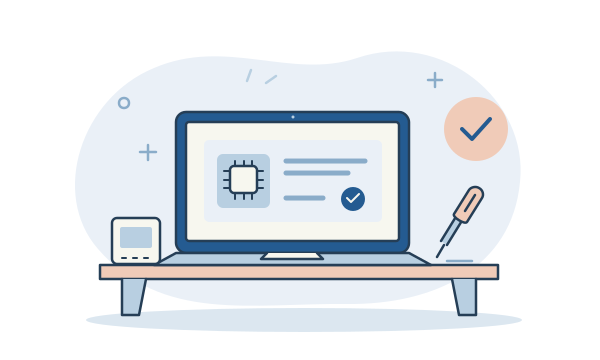
The small fibre box is often called an ONT or CPE. It connects your property to the fibre network. A separate router usually shares that connection through Wi-Fi and network cables, although some installations combine these functions. Keep the equipment labels and installation paperwork handy so you can identify what has been fitted.
Confirm that the service is active
Ask your internet service provider whether installation, network provisioning and account activation are complete. These may happen at different times. An existing fibre box at a new address does not necessarily mean your own service is ready. Follow your provider’s instructions for your network; another household’s setup details may not apply.
Connect the router using the right instructions
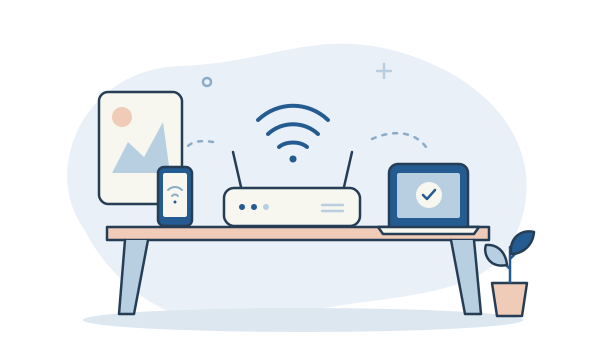
In a typical setup, a network cable runs from the designated port on the fibre box to the router’s WAN or Internet port. Both devices need power. Use the port and connection settings specified by your provider. Leave the thin fibre cable and sealed equipment alone, and avoid a factory reset when you are unsure what settings it would erase.
Try one device before setting up everything
Start with a computer connected to the router, or one device nearby on Wi-Fi. Confirm that ordinary websites open before connecting every printer, television and phone. If you test with a phone, check it is using your new Wi-Fi rather than mobile data. Write down any error message instead of repeatedly changing settings.
Check the rooms where you actually work
Once the internet works near the router, try it at your desk and in other important rooms. Poor coverage elsewhere is a separate problem from activation. CW IT Solutions can help with router placement, device connections and local Wi-Fi coverage; your provider remains the contact for activation, service outages and fibre network faults.
The useful bit to remember
First confirm the service is active. Then check the router connection. Finally, make sure the Wi-Fi reaches the places you need it.
Further reading
Official guidance behind this explainer.