Look at the printer first
Check that it is on and awake. Look for a paper jam, an open cover or a message on its own screen. If the printer has a built-in test-page option, use the manufacturer’s instructions to try it. Note the exact error before restarting anything; it may tell you more than the computer’s offline label.
Check how it connects
For a USB printer, check the cable is securely connected to both the printer and computer. For a wireless printer, check that it and your computer are on the same home or office network. A new router or changed Wi-Fi password can leave the printer using old details. Follow the printer’s own guide to reconnect it.
Choose the right printer and inspect the queue
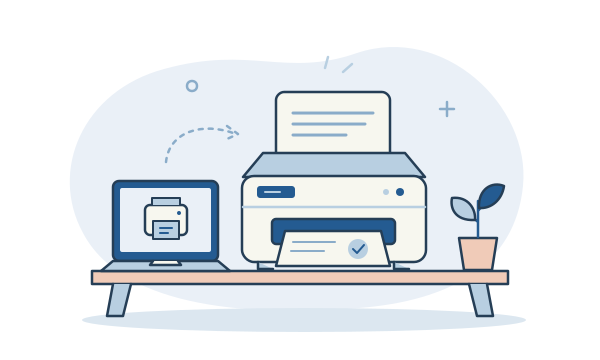
Check the printer selected in the application’s print window. Old installations can leave several similar names behind, and Print to PDF will create a file instead of a paper copy. Open the correct printer’s queue and look for a stuck job. Cancel only jobs you recognise; check with colleagues before clearing a shared queue.
Restart once, then try one small job
Save your work, restart the printer normally and allow it to reconnect. Restarting the computer can also refresh the connection. Try a single, simple page rather than clicking Print repeatedly and building a long queue. Windows’ built-in printer troubleshooter can help check the setup. Download any required software from the printer manufacturer’s official support website.
Notice whether one device or everyone is affected
If another computer prints successfully, that narrows the problem towards the first computer’s settings or software. If nobody can print, the printer or shared connection needs attention. Have the printer model, connection type and error message ready when asking for help. Avoid a factory reset unless you have a clear plan to restore the setup.
The useful bit to remember
Check the printer, check its connection, then check the queue. A few observations are more useful than repeatedly sending the same document.
Further reading
Official guidance behind this explainer.