
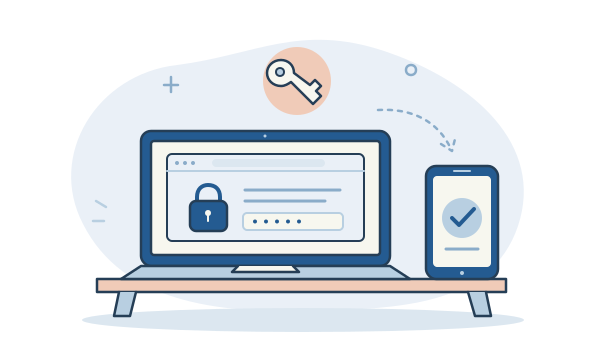
Give each account its own password
Use a long, unique password for each account that still requires one. Reusing a password lets a leak at one service put other accounts at risk. A trusted password manager can create and store different passwords for you. Protect the manager itself and understand its recovery process before relying on it.
Add another sign-in check
Turn on two-step verification, also called MFA or 2FA, where available. This adds another check beyond a password. Services may offer an authenticator app, device approval or a security key. Follow the service’s official guidance and choose an option you can use reliably. Never send a sign-in code to someone who contacts you.
Consider a passkey when it is offered
A passkey can let you sign in using your device’s screen lock, fingerprint or face unlock, without typing an account password. It also offers stronger resistance to fake sign-in websites. Set it up only on a device you control, with a secure screen lock, and check how you would sign in if that device were unavailable.
Keep your route back in up to date
Check that your recovery email address and phone number still belong to you and are accessible. Review the account’s recovery instructions while you can still sign in. Before replacing a phone, plan how any authentication apps and passkeys will move. Keep account recovery information private, just as you would your passwords.
Pause when an approval was not your idea
If a sign-in approval arrives when you are not signing in, decline it. Do not approve repeated prompts to make them stop. Open the service’s official app or type its known address yourself, then review recent activity and follow its security steps. If anything is unfamiliar, ask for help while keeping control of your sign-in details.
The useful bit to remember
Start with email: use a unique sign-in, enable stronger verification and check recovery details. Approve only sign-ins you started and recognise.
Further reading
Official guidance behind this explainer.